

1. Add a shared folder to the shared folder: backup test;

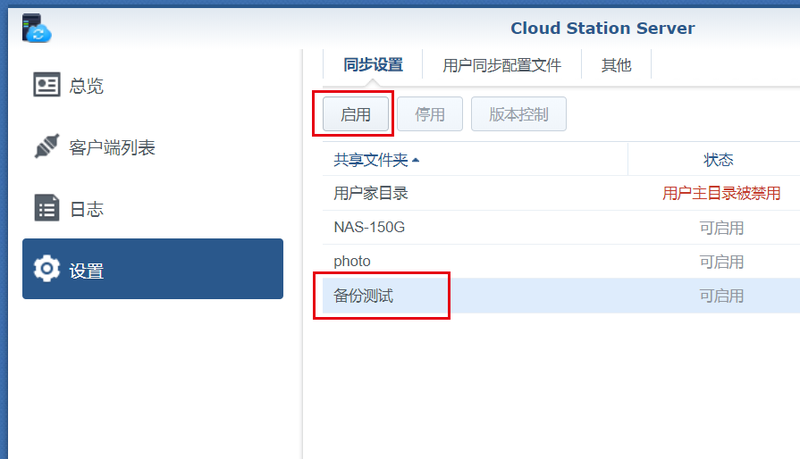
2, in the Cloud Station Server, set, enable the new "backup test" shared folder;
3. Create a folder to be backed up on the PC/PC: PC-to be backed up;
4. Download and install Cloud Station Drive and open the software:
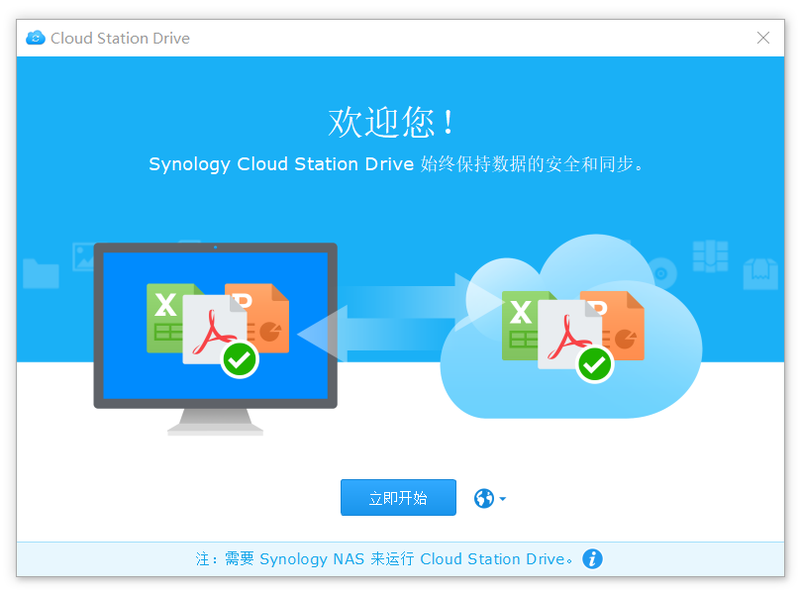
5. Start immediately, select the NAS address (192.168.31.155 as shown below) and the username and password to log in.
6. Click the pencil on the right to select the backup shared folder on the NAS server: backup test; select the backup folder on the local computer: PC - to be backed up;
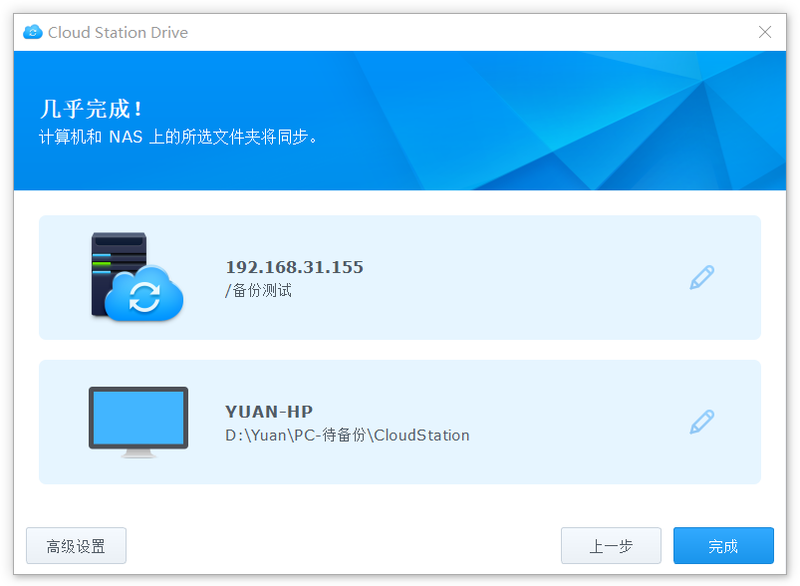
7. After clicking Finish, the software will automatically run in the lower right corner of the desktop.
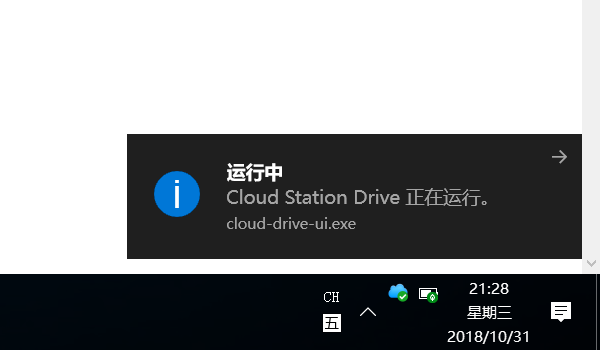
8. Double-click the Cloud Station Drive icon in the tray to open the software and you can see the running status of the backup.
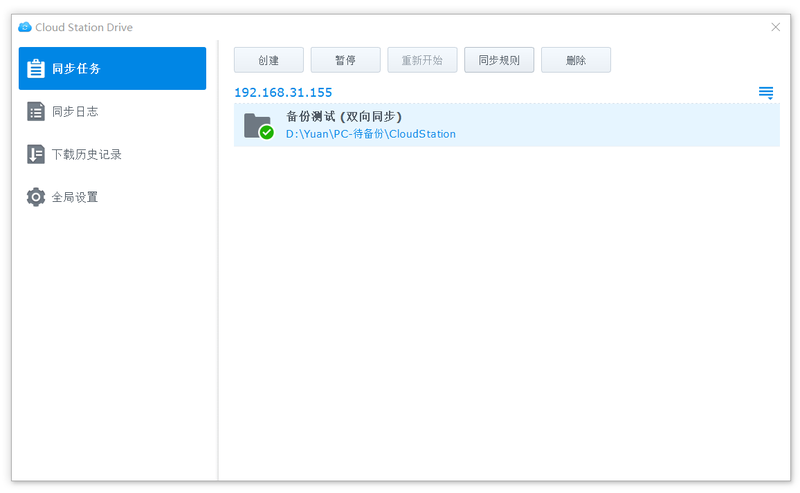
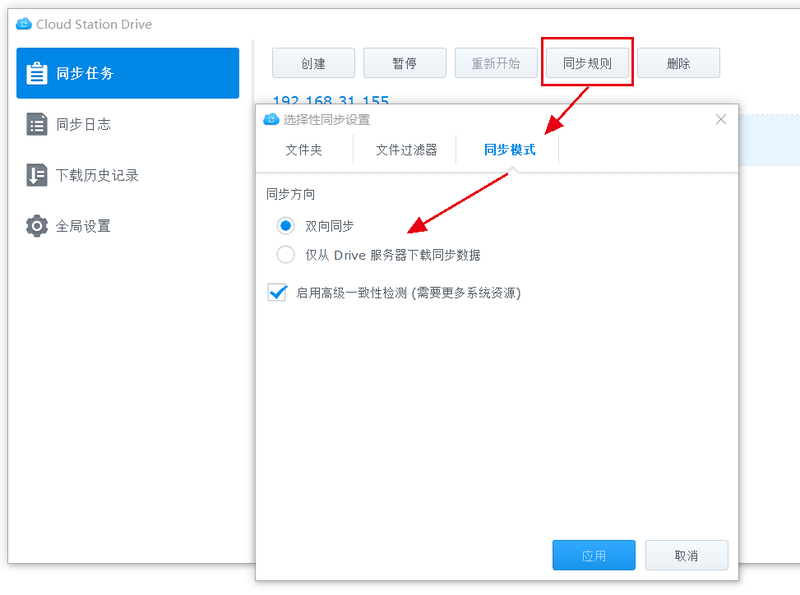
9, at the same time, you can also choose to set the synchronization rules:
10. Re-enter the NAS, check the backup test folder, and quickly synchronize the data in the PC-side folder to the NAS.
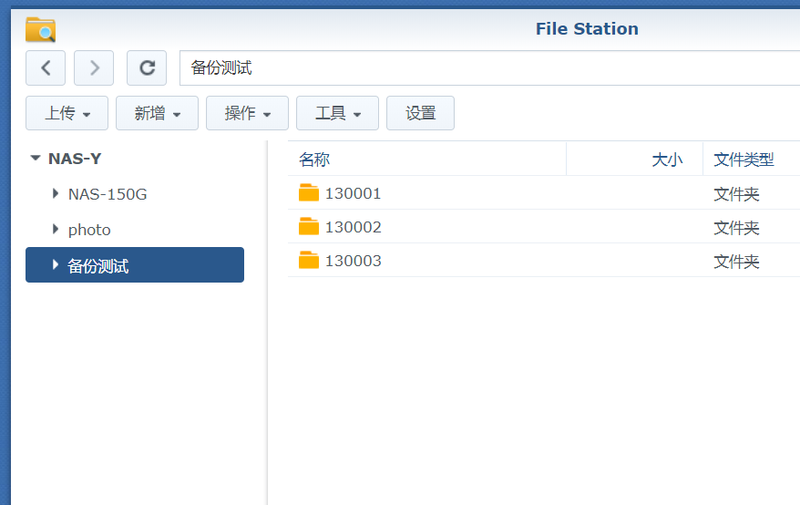
Copying files to the NAS from a computer can reach tens of megabytes to hundreds of megabits per second. Therefore, by using this method to back up files on the computer to the NAS, the speed is very cool. It is not the speed of syncing to Xiaomi routing, even surpassing the USB 3.0 interface to copy to the hard disk, and catching up with the speed of the computer's SATA interface.